Protip
Terminal autocompletion
Tired of going through of your bash history and pressing up arrow key to find that one specific command? Use bash autocompletion
- Create a file called
.inputrcin your home directory (e.g.,/uoa/home/r04mr23/.inputrc) - Copy and paste the following to the file
.inputrc
"\e[A": history-search-backward
"\e[B": history-search-forward - Save it and reload your terminal by creating a new terminal (it's the
+button beside thebash)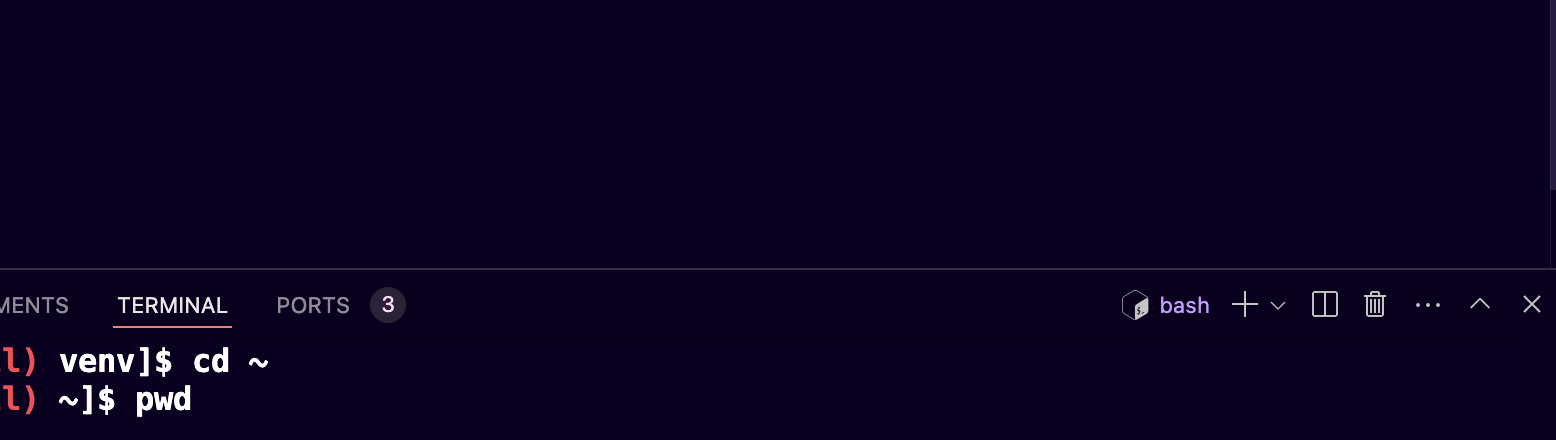
- Now whenever you're typing a command you can use up or down arrow key to search for the previous command that you used. Here's the example:
# I typed `sba`
[r04mr23@maxlogin1(maxwell) ~]$ sba

# I pressed up arrow
[r04mr23@maxlogin1(maxwell) ~]$ sbatch /uoa/home/r04mr23/sharedscratch/src/start_jupyter.sh benccchmarker-simulation

# I pressed the up arrow again
[r04mr23@maxlogin1(maxwell) ~]$ sbatch alignment_slurm.sh
Passwordless Auth to VS Code Remote
It can be annoying to have to reenter your Maxwell password every time you're trying to connect to it. Here's how you can bypass it:
- Open terminal on your local pc
- Generate public and private keys using OpenSSL, change
<local_user>with your username (e.g.,r04mr23for me)This will output two filesssh-keygen -q -b 2048 -P "" -f /Users/<local_user>/.ssh/keys/maxlogin_rsa -t rsamaxlogin1_rsa(private key) andmaxlogin1_rsa.pub(publick key) - Update your ssh config located on
/Users/<localuser>/.ssh/config(create one if you don't have) by adding the following, again change the<local_user>and<remote_user>with yours, usually they're the same for MaxwellHost maxlogin1
HostName maxlogin1.abdn.ac.uk
User <remote_user>
Port 22
PreferredAuthentications publickey
IdentityFile "/Users/<local_user>/.ssh/keys/maxlogin1_rsa" - Copy the content of the
maxlogin1_rsa.pubto<remote_user_home_dir>/.ssh/authorized_keys(in Maxwell it's/uoa/home/<remote_user_name>/.ssh/authorized_keyscreate one if it doesn't exist), your file should look like this nowssh-rsa AAAAB3NzaC1yc2EAAAADAQABAAACAQCxu/dOSNX1aRYB8Abl1Jbj0zFTwCCQBaXi/ZsWJS4mEX0RkXckItf2hf0O14PBZ8DdW9RS/zdadadasdaystdeyuasgdhjagjhdgashjdghjasdtyaatyuetyquegjhwqghjdaghjsdghsjagdhjagsdhjaghjdgahsjdghjastdyaudtyuatdyuatsyudtasyudtasyudryrqtyertyqwretfqghwefqgwhefghqfhegqfwgheqw m.ramdhani.23@abdn.ac.uk - Update the permission to
600(File can only be accessed by you, inaccessible to everyone else)[r04mr23@maxlogin1(maxwell) ~]$ chmod 600 /uoa/home/<remote_user_name>/.ssh/authorized_keys - Now you can log in to VS Code without password!
Automatically load slurm on every log in
Are you annoyed by the bash: sbatch: command not found error message every time you want to submit a job because you forget to do module load slurm? Adding it to your ~/.bashrc file will automatically load slurm
[r04mr23@maxlogin1(maxwell) ~]$ vim ~/.bashrc

# Press `shift + g + $` to go to the end of the line, press `i` then `enter` and type `module load slurm`